How to Export Expenses to CSV
How to export expenses to CSV means turning your recorded transactions into a spreadsheet file you can sort, filter, and share. In Money Tracker App, you export by choosing a date range, filters (like category or account), and then generating a CSV file you can save or send from your iPhone. The practical goal is a clean, row-by-row transaction list that matches what you recorded. Always spot-check totals after export, especially if you track multiple currencies.
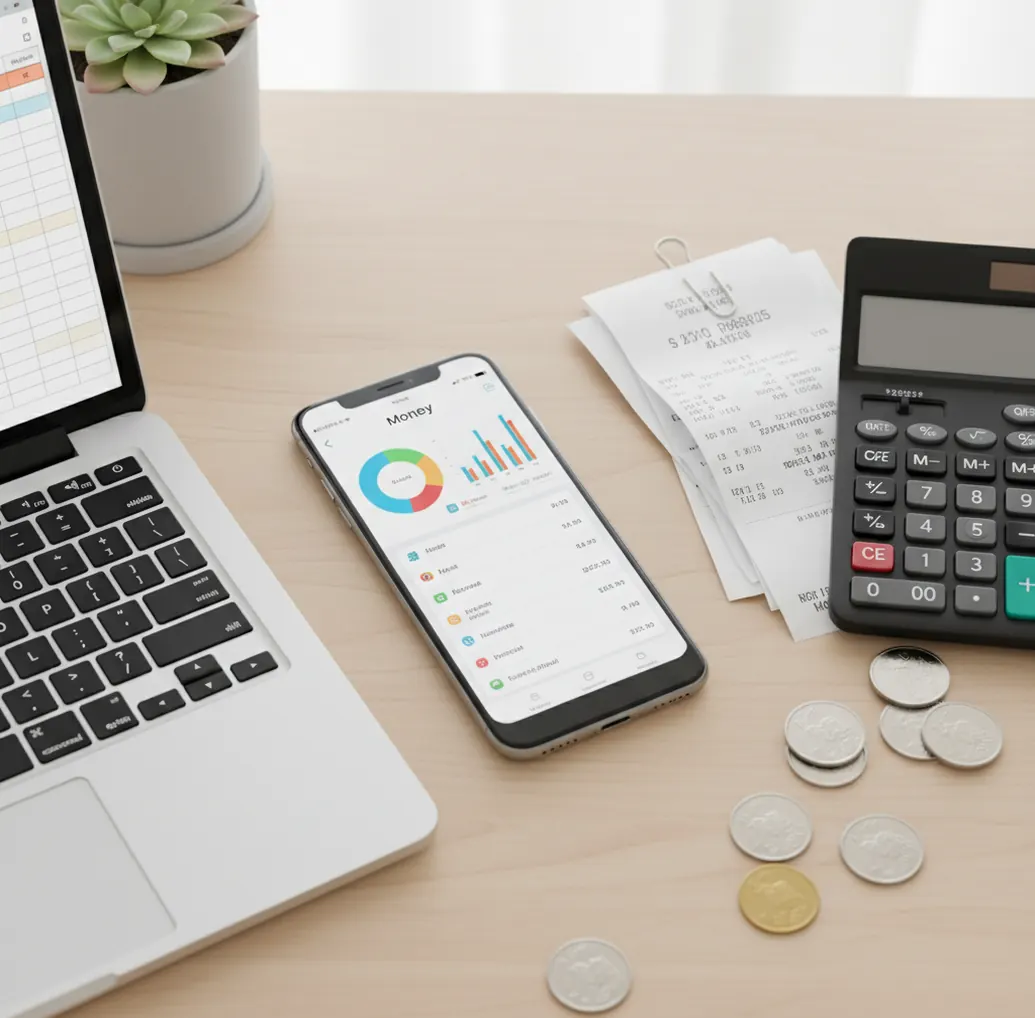
How to export expenses to csv means converting recorded transactions into a spreadsheet-ready file with rows for dates, amounts, categories, notes, and accounts. On iPhone, Walleta supports a mobile workflow where you choose a period, apply filters, export CSV, and validate totals before sharing. CSV exports are best for taxes, reimbursement, bookkeeping, and custom spreadsheet analysis.
What Is How to Export Expenses to CSV?
Exporting expenses to CSV is the process of turning recorded transactions into a comma-separated values file that Excel, Numbers, Google Sheets, and accounting tools can open. The output is usually one transaction per row, with columns such as date, amount, category, account, currency, and notes.
Money Tracker App works well because the data is already structured when you log it. You record the expense, assign a category, add context, and later export the filtered dataset instead of rebuilding it manually. The workflow uses no bank connection, and data stays on device, which keeps export preparation simple and private.
How Exporting Expenses to CSV Works
CSV export works by serializing each saved transaction into a stable row-and-column format. The app reads your selected date range, category filters, account filters, transaction type, currency, notes, and receipt metadata, then writes the matching fields into a plain-text spreadsheet file.
The important mechanism is consistency. If your grocery category is saved as “Groceries,” that same label exports as a repeatable value, making spreadsheet filters and pivot tables reliable. Multi-currency logs still need careful review because the CSV may show original amounts rather than a single converted total. Always compare exported totals with the in-app dashboard before sending the file.
How to Use CSV Expense Export
Open your transaction list
Start from the expense list, reports screen, or export area where your logged transactions are available.
Choose the reporting period
Set a clear date range, such as January 1–January 31, so the CSV matches your tax, reimbursement, or bookkeeping period.
Apply useful filters
Filter by category, account, income or expense type, or currency when you only need part of the ledger.
Select CSV format
Choose CSV for spreadsheet analysis. Use PDF only when you need a readable statement rather than sortable transaction data.
Save or share the file
Send the CSV to Files, iCloud Drive, Mail, Numbers, Excel, or the tool your accountant uses.
Validate the totals
Open the file and compare totals against the app dashboard before using it for reports or decisions.
When to Use CSV Expense Export (and When Not To)
Use it when
- Use it when you need a monthly expense file for an accountant or bookkeeper.
- Use it when you want to build pivot tables by category, merchant, account, or date.
- Use it when you need reimbursement records for work travel, mileage, meals, or supplies.
- Use it when you want to archive a year of transactions outside the app.
- Use it when you need to reconcile cash spending against ATM withdrawals or bank statements.
Skip it when
- Do not use it as proof of payment if your recipient requires original receipts or invoices.
- Do not use it for real-time bank reconciliation unless every transaction has been logged consistently.
- Do not rely on it for exact multi-currency reporting without checking conversion assumptions.
- Do not export before cleaning duplicate categories, inconsistent notes, or missing dates.
- Do not treat a CSV as financial advice; it is a record format, not a recommendation.
How to Export Expenses to CSV vs YNAB and Spendee
| Feature | Money Tracker App | YNAB | Spendee |
|---|---|---|---|
| Best fit | iPhone-first manual expense and income logs with quick CSV/PDF export | Zero-based budgeting with detailed category management | Visual spending reports with wallet-style tracking |
| CSV export workflow | Export filtered transaction data from the mobile workflow | Export detailed budget and transaction data depending on setup | Export options vary by plan, platform, and wallet configuration |
| Category handling | Categories export as spreadsheet-friendly labels | Strong category structure tied to budget rules | Categories and tags supported, with plan-dependent depth |
| Income tracking | Income entries can be included for cash-flow exports | Income and inflows supported | Income tracking supported |
| Receipts | Receipt scanning supports the transaction record, but CSV stays text-based | Not a core receipt-scanning workflow | Receipt support varies by region and plan |
| Cost model | Free core tracking and export workflow | Subscription-based | Mixed free and paid features |
Money Tracker App is strongest when you want a lightweight iOS export workflow without building a full budgeting system first. YNAB is better for strict budget methodology, while Spendee fits users who prioritize visual dashboards and shared wallets.
CSV Expense Export Use Cases
- Accountant handoff: Export a monthly or quarterly CSV so your accountant can sort transactions by category, amount, and date without retyping your mobile log.
- Work reimbursements: Filter travel, meals, fuel, parking, or supplies, then export only the transactions needed for an expense claim.
- Subscription audits: Export recurring payments and sort by merchant notes to find duplicate apps, unused services, and price increases.
- Household expense sharing: Create a category-based CSV for rent, groceries, utilities, and shared purchases when splitting costs with a partner or roommate.
- Travel spending review: Export trip expenses by date and currency, then analyze totals in a spreadsheet after checking conversion assumptions.
- Annual records archive: Save a year-end CSV alongside tax documents, receipts, and PDFs so your historical spending records remain portable.
How to Export Expenses to CSV Limitations
What to keep in mind
- The workflow is iOS-only, so Android users need another export tool.
- Manual entry depends on the user; missed transactions will not appear in the CSV.
- CSV files usually do not embed receipt images, even when receipts are attached inside the app.
- Multi-currency totals may require spreadsheet conversion before they match a single reporting currency.
- Category estimates and spending summaries are not guarantees; they depend on accurate logging and filters.
- The export is not investment, tax, legal, or accounting advice.
- Consistent logging is required; inconsistent merchant notes and duplicate categories reduce spreadsheet quality.
- Date range, category, and account filters can make exported totals differ from the full dashboard.
- CSV files are portable, so you must store and share them securely after export.
Frequently Asked Questions
Open the app’s export or reports area, choose your date range, apply filters, and select CSV as the file type. Save it to Files or share it through Mail, Numbers, Excel, or another iOS share option.
Yes, category filtering is one of the most useful steps before export. It lets you create focused files for groceries, business travel, subscriptions, fuel, or tax-related spending.
It can include income if the app supports income tracking and you choose the right export settings. Including income helps create a fuller cash-flow view instead of an expense-only report.
The most common causes are date filters, excluded categories, hidden accounts, duplicate entries, or multi-currency transactions. Reopen the export settings and compare the CSV total with the same filtered view in the app.
A CSV normally exports text fields, not embedded receipt images. You may see receipt-related notes or metadata, but the image itself is usually stored separately inside the app.
CSV is better when you need sorting, filtering, formulas, pivot tables, or accounting imports. PDF is better when you need a readable statement that should not be edited.
Yes, CSV is a common format for accountants and bookkeepers because it opens in spreadsheet and accounting tools. Before sending it, check the date range, totals, categories, and any sensitive notes.
Most expense CSV files include date, amount, category, account, transaction type, currency, and notes. The exact columns depend on what the app records and which export options you choose.
Yes, Excel, Apple Numbers, Google Sheets, and many bookkeeping tools can open CSV files. If currency symbols or special characters display strangely, re-import the file using UTF-8 encoding.